Connect Facebook and Insta comments to Intercom with a clean, reliable setup.
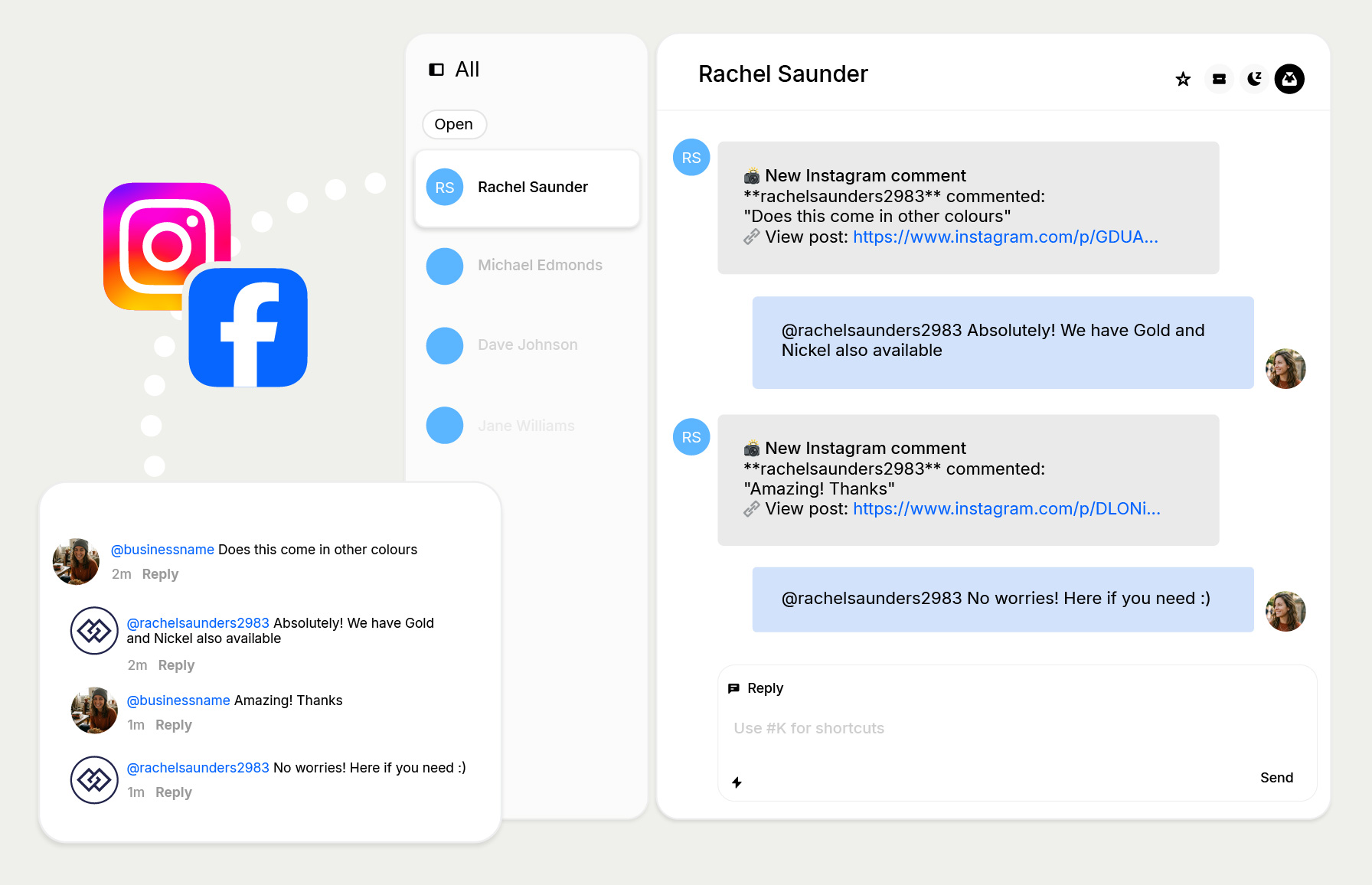
Messenger Labs helps support teams bring Facebook and Instagram comments into Intercom, so your team can reply faster from one familiar inbox.
Why teams use Messenger Labs
Designed to feel simple, polished, and familiar for Intercom-first support workflows.
One shared inbox
Manage Facebook & Instagram Comments alongside your existing Intercom support flow.
Fast setup
Connect your Facebook account, choose the right business assets, and start receiving messages.
Clear onboarding
A guided setup process helps reduce confusion around Facebook Pages, permissions, and account selection.
How to connect Facebook and Instagram comments to Intercom
Follow these steps to complete the connection. Keep your Facebook business assets handy before you begin.
Open the Facebook and Instagram Comments App in Intercom
Start the installation from your Intercom workspace and choose Connect Facebook Pages to begin.
Continue with Facebook
You will be redirected to Facebook. Sign in with the account that manages your business assets.
Select your Instagram accounts
Choose the Instagram accounts associated with the business presence you want to manage.
Select your Facebook Pages
Choose the Facebook Page you want to connect. You can only connect a Business Messenger, not a Personal Page.
Keep the required permissions enabled
Do not switch off the requested permissions during Facebook onboarding, or the integration may not work correctly.
Finish setup and test the connection
Once connected, send a test message to your Facebook Page and confirm it appears in Intercom.
Important notes
- • You can only connect your Business Messenger, not your Personal Page.
- • Please make sure you do not have active bot integrations in your Facebook Business Integrations if they may conflict with message delivery.
- • If you manage multiple Pages, confirm you selected the correct one during Facebook onboarding.
Need a hand?
If you run into setup issues, permission problems, or page selection confusion, contact the Messenger Labs team for support.